
Activity Feed is a powerful tool that combines many different types of filings, sources, trading events, name/symbol changes and more into a single chronological timeline of a company.
For more on what the Activity Feed contains and tracks click here.
Contents:
- Getting around Activity Feed
- How to use filters
- How to narrow results by date
- Actions & Activity Feed tiles
Getting around Activity Feed
Activity Feed combines many different document streams and market signals into a single unified and chronological stream that you can instantly filter by date range and topic.
Activity Feed starts from the most recent so you always see the most recent item, first.
Quick filters help you find what you need as fast as you think.
Date filters allow you narrow your search.
Each Activity Feed tile allows you to:
- View the supporting document
- Save the document to your Reading List
- Share the document
- Download the supporting document (coming soon)

How to use filters
You can use the quick filters to easily and quickly select some of the most commonly searched for Activity Feed tiles. You can select one, or many types and the Activity Feed will deliver what you're looking for.
The number within the filter indicates how many records there are within each section. Filters that are greyed out indicate there are no records for that company that fit the filter.

How to narrow results by date
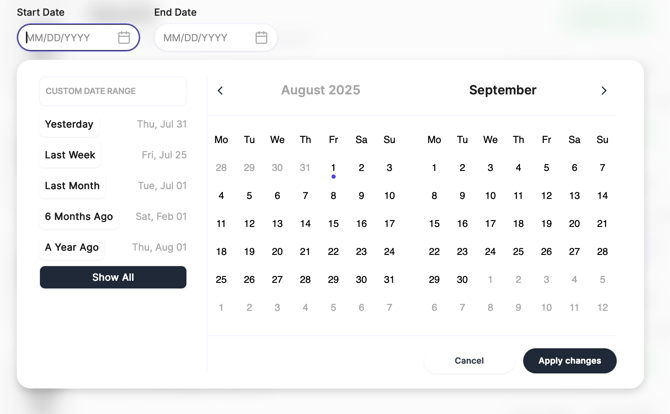
Narrowing results by date is simple, to open the date selector click or tap on either the start date or end date inputs.
The date filter dialog will open allowing you to:
- Type in your start and end date range you're looking in
- Select a quick filter from the left
- Use the calendar to select the start and end date
Then, click Apply Changes.
Actions & Activity Feed tiles
Within Activity Feed, any tile you see that has the actions ribbon along the bottom will allow you to do one of the following:
- Add the document to your Reading List
- Share the document to someone else
- Download the filing (coming soon)
- View the document
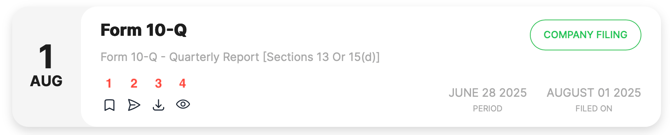
Depending on the type of filing or action that generated the Activity Feed tile, you will see different dates on the tile. In the case above, a US Form 10-Q, shows both the date the 10-Q was filed as well as the period that the report relates to.
The pill at the top right of the above example indicates what type of tile activity the tile relates to.