Adding companies to your watchlist allows you to keep tabs on the companies you care about most. Adding a company to your watchlist will add it both to your homepage under the My Watchlist section and any filings or events in the company will also appear in the My Activity Feed section of your homepage to make sure you stay up to date.
Contents:
- Adding to the watchlist from a company profile
- Adding to the watchlist from 6DEGREES
- Removing from the watchlist from a company profile
- Removing from the watchlist from 6DEGREES
Adding to your watchlist
From a Company Profile
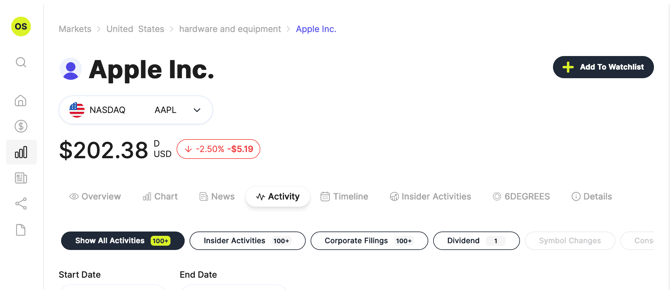
From a Company Profile, in the top right of the screen you will see a "Add to watchlist" button on your desktop or a simple "+" icon on your mobile device. Press that icon, and you're done. The company will now be on your watchlist.
From 6DEGREES
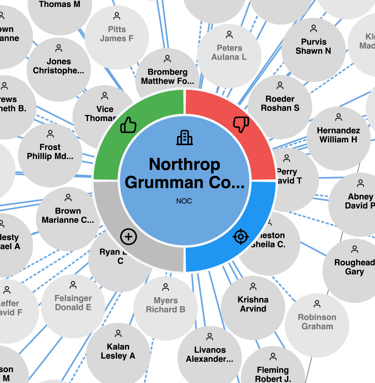
If you want to add a company to your watchlist directly from 6DEGREES, you can. Click or tap once on a company to reveal the donut menu, then simply click or tap on the "+" icon and you're done.
Removing from your watchlist
From a Company Profile
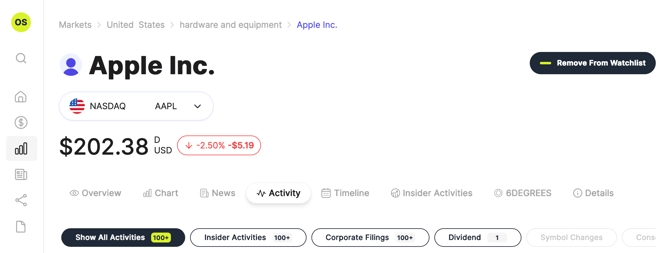
To remove a company from your watchlist while on their Company Profile, look in the top right on your desktop for the "Remove from watchlist" button. Click to remove the company from your watchlist. On your mobile device, again near the top right look for the "-" minus icon. Tap to remove the company from your watchlist.
From 6DEGREES
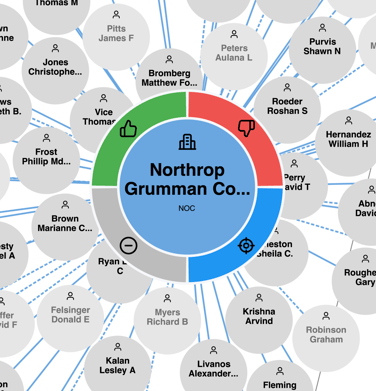
When in 6DEGREES, a company is in your watchlist if (when the donut menu is open) the bottom left section is a "-" icon. To remove the company from your watchlist, click/tap that icon and it will change back into a "+".