
Search is one of the most powerful tools in the platform. It helps you navigate quickly and efficiently around the complex web of data at lightning speed - here's some tips and tricks to get the most out of it.
Contents:
Search User Interface
The search user interface is designed to get you the most amount of information without overwhelming you, so that you know you're selecting the right company or insider.
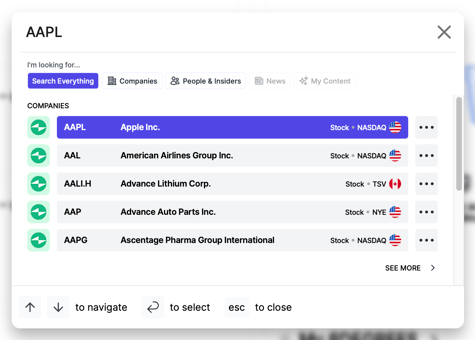
In this example, we opened Search and started typing the symbol for AAPL, you can see the result above. Since the tool assumes we're talking about the ticker symbol for Apple, it delivers that result to you, first.
By default, you will see a group of five results within each category. You can expand to show more results if you didn't see what you expected by clicking the "SEE MORE" at the bottom of each section. Another five results will be displayed.
Scrolling within the window when you have "Search Everything" selected will reveal the "People & Insiders" section after "Companies" and will show you the insiders that are connected to, in this case, AAPL. Let's take a look below:
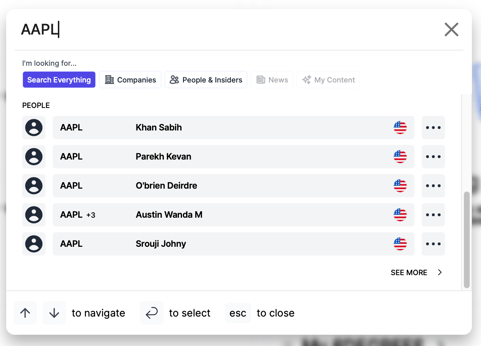
Note that since we scrolled down we're now seeing the "People & Insiders" results for what we typed in above. On the left we see the symbol of the company, then the name of the insider and then a country flag indicating what region they're filing in. Multiple flags indicate multiple regions detected for the same insider.
Tip: notice the "+3" to the right of the AAPL in Austin Wanda's record? That tells us that particular insider has reported being an insider of AAPL and three other issuers. This can be really useful if you're trying to find a particular insider with a relatively common name.
Categories
By default, "Search Everything" is selected. Simply start typing to start revealing results. If you want to look for something more specific or if your search returns too many results and you'd like to narrow it, you can select individual categories.
You can select:
- Companies
- People & Insiders
- News (coming soon)
- My Content (coming soon)
Single click on a category to turn it on, click again to turn it off. To return to the default of "Search Everything" you can click that option or turn off your filtering.
Keyboard Navigation
You can use the keyboard to get around even faster within Search.
Currently you can:
- Arrow keys -> move around within the interface
- Enter/return -> select what you're hovering on
- Escape -> close the search dialog