Contents:
6DEGREES Explore
Explore if where you can, well - explore! From here, filter by industry to get a high level overview of massive groups of companies and insiders, then dive in further to get a closer look.
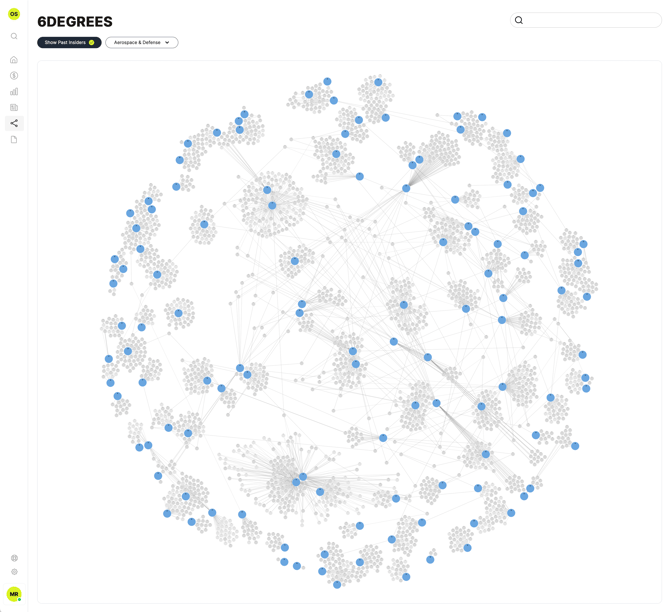
Above is the typical first page you'll see in Explore mode. This is the Aerospace and Defence industry and within this view we can see all the companies (blue) and the insiders (grey) that make it up.
Choosing an industry
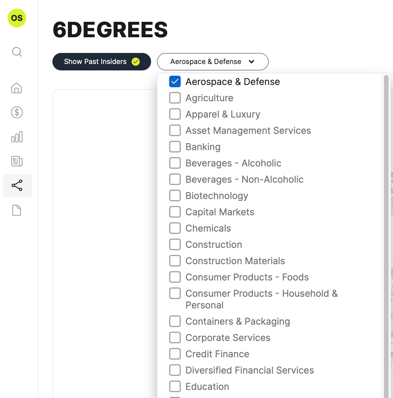
To switch the industry view to something else, click or tap on the "Aerospace & Defence" dropdown to reveal the industries you can choose from. Select an industry and the graph will redraw.
Some industries are VERY large and contain tens of thousands of nodes and connections. Some views can take multiple seconds to load so please be patient rather than trying to reload the page. We are actively improving performance of these complex layouts.
Hiding connections
You can choose to either hide or show legacy or past relationships between insiders and companies on all views in 6DEGREES. To do that, use the "Show Past Insiders" button at the top left of the app.
The app remembers your choice so if you turn it on, you will always see all relationships and vice versa.
The check mark in the button example below tells us we are seeing all insiders and connections on the graph, including old ones.
My 6DEGREES
My 6DEGREES brings together:
- Any company in your Watchlist
- Insiders or companies that you have tagged
The app brings everything together into a single view we call your Trust Network. As you use the platform and interact with companies and insiders, you'll see your Trust Network start to grow and expose common shareholders, management and more.
The more you use the tool, the smarter your Trust Network becomes.
You can get to My 6DEGREES by:
- Main menu -> 6DEGREES -> My 6DEGREES
- Or by clicking on the "My 6DEGREES" text in the tile on your homepage to open it in a full page view.
Layouts in 6DEGREES
Within 6DEGREES there are two layout options:
- The radial layout
- The organizational layout
Radial layout
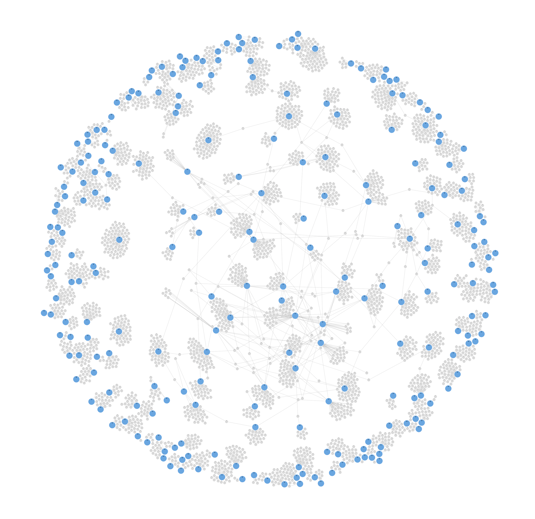
The radial layout is the standard view in 6DEGREES you'll see when you land on the Explore page or in My 6DEGREES.
This layout tries to be as efficient with space as possible, spreading out the nodes and connections evenly.
Key points in this layout:
- Clusters of nodes indicate commonality and shared reported ownership
- Nodes pushed to the edges indicate low or no commonality in the view
This example below shows the "Consumer Products - Food" industry view in the radial layout.
Organizational layout
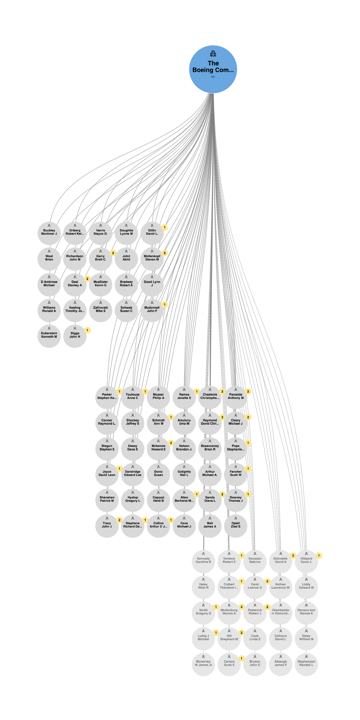
When you have a single company in your focus, you will see it in the organizational layout. This makes it easy for you to see and understand the levels of control over the company each insider has within it.
Key points in this layout:
- The uppermost section contains executives and anyone with a reported management position in the company
- The second section contains everyone who has reported transactions in the company but is not a part of management
- The final section (if you have "Show All Insiders" activated) shows all the past insiders of the company
Accurate executive/manager title and position data is an ongoing challenge for our US data and we are continuously improving the accuracy of titles in the graph. If you see something that you think is incorrect, let us know by filing a ticket.
The example below shows The Boeing Company. See it for yourself by trying out this link or by looking for Boeing within the search box then from the company page clicking the 6DEGREES tab or by looking for the company from the Explore app.