
Your homepage consists of four main blocks to help give you a snapshot of the platform.
Contents:
Search
Search is how you get around the platform. Here's some general info - for more detail on Search click here.
To open the Search box on desktop, move your mouse over the top left near the magnifying glass. The menu will open and single click inside to open the dialog.
To open on mobile, tap the hamburger menu in the top right, then the search dialog to open.
To search just start typing - results start to appear instantly!
To navigate, click or tap on the item and the page will reload.
To filter, select one of the items at the top like "People & Insiders" to only show those items.
For more detail on search, click here.
Release Notes
The Release Notes section is designed to provide you with a quick glance at what's changed and what we've fixed in the platform. Since this is early access software, there will be some hiccups along the way and we want to ensure that we're communicating to you clearly when we improve or fix something.
In future, Release Notes will move to the dedicated support section.
My Watchlist
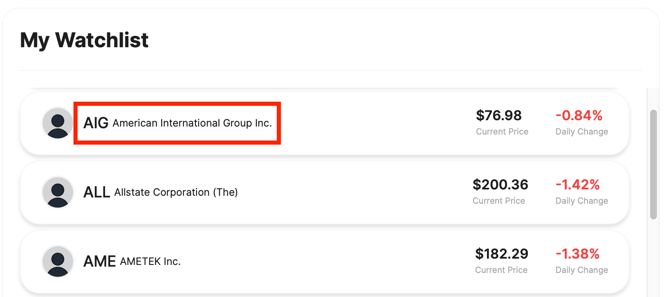
My Watchlist shows you any company you've added to your Watchlist as well as it's most recent price and price change.
You can navigate to the company's profile page by clicking on the ticker symbol or name of the company.
To learn more about the Watchlist, click here.
My Activity Feed
My Activity Feed is a great place to catch-up on the latest filings and events for the companies you care about.
My Activity Feed shows you a consolidated view of everything filed in the last 7 days for any company that is in your Watchlist.
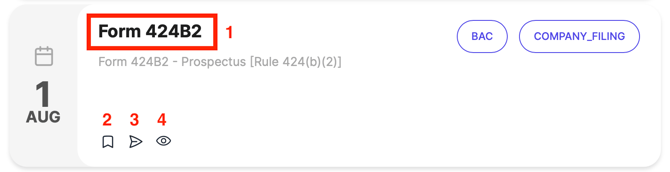
There are two pill style icons on each tile:
- The ticker lets you know what company the filing is related to.
- The type pill shows you what kind of an action it is (company filing, insider action, etc.)
Here's the actions you can take from this view:
- Clicking on the title of the document will take you to that tile's location within the Activity Feed of that company so you can see what else was going on around it for more context.
- Clicking on the Bookmark icon will instantly add the item to your Reading List so you can view it later. Learn more about Reading List here.
- Clicking on the paper airplane allows you to share the filing with someone else.
- Clicking on the eye will instantly open the file for you in a new tab.
My 6DEGREES
My 6DEGREES is where you can see a snapshot of your Trust Network as it grows. To learn more about 6DEGREES click here.
Tip: as your Trust Network grows, the app can slow down. This is currently something we are working to improve. Some companies or insiders with extremely complex histories can take multiple seconds to load the graph. Instead of refreshing the page, allow your browser to load. Once the data has been loaded, you should not experience any lag.
Here's the actions you can take from this view:
- Clicking on the title of the tile "My 6DEGREES >" will open the app so you have more room to explore—especially useful as your Trust Network grows!
- Use 6DEGREES as you normally would:
- Zoom in and out (using your mouse wheel or pinching on your mobile device).
- Panning around by clicking and dragging.
- Adjusting flags (learn more about 6DEGREES Flags here)
- Focusing on any insider or company by clicking the target button once the node is selected.